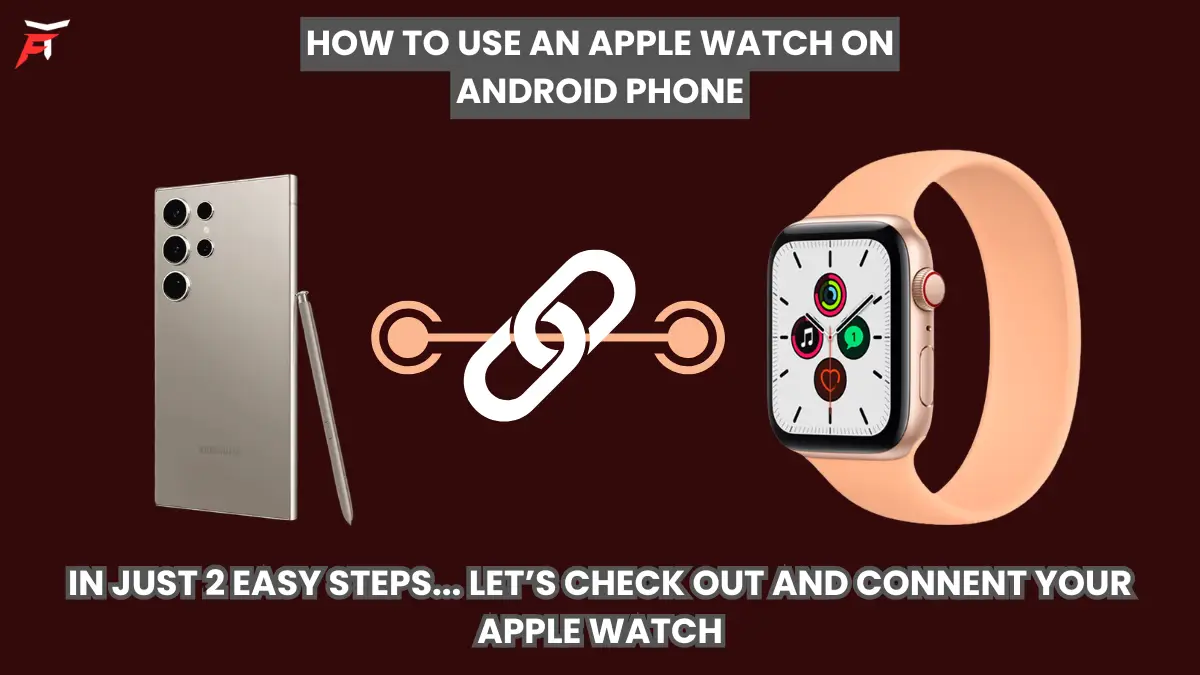
Learn How to use an apple watch on android phone, make things different
Let me start with a truth that Apple doesn’t like to say out loud and Android users don’t like to hear:
👉 Apple Watch is not designed to work with Android.
But… don’t leave yet.
Because while Apple and Android don’t officially shake hands, there is a clever workaround that many people don’t know about. It’s not perfect, it’s not magical, but it does let you use an Apple Watch with an Android phone if you follow a specific method.
So if you already own an Apple Watch (or you love it too much to switch) but you’re using an Android phone, this guide is written just for you.
Let’s walk through it together.
How to use an apple watch on android phone
First, Let’s Understand the Problem
Apple Watch needs an iPhone for:
Initial setup
Syncing apps
Managing settings
Updating watchOS
Health data syncing
Notifications and app integration
Android simply cannot do these things. There is no Apple Watch app for Android, and there never will be “Apple being Apple”.
But here’s where things get interesting…
If your Apple Watch has cellular (LTE), you can actually make it work independently after the initial setup.
That’s the secret.
How to use an apple watch on android phone
What You Need Before We Start
You’ll need:
An Apple Watch with Cellular (GPS + Cellular model)
A working iPhone (borrow from a friend or family member if you don’t have one)
Your Android phone
A SIM/eSIM plan that supports the Apple Watch
Without the cellular version, this method will not work.
Step 1 Use an iPhone Just Once (For Setup)
Yes, this is the only annoying part.
Take the iPhone and:
Turn on the Apple Watch
Pair it with the iPhone
Complete the full setup
Sign in with your Apple ID
Activate cellular on the watch (very important)
Install any apps you want
Update the watch to the latest watchOS
This is the only time you’ll need the iPhone.
After this step, the Apple Watch becomes semi-independent.
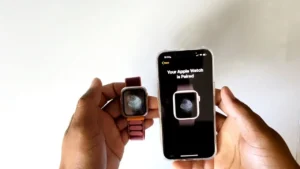 How to use an apple watch on android phone
Step 2 Move Your SIM to Your Android Phone
Now:
Remove the SIM from the iPhone
Put it into your Android phone
Keep the Apple Watch powered on
The watch stays connected to the mobile network through its own eSIM/cellular connection.
And here’s the surprising part…
Your Apple Watch can now:
Make and receive calls
Send and receive messages
Use Siri
Stream music
Use apps that require internet
Track fitness, heart rate, steps, workouts
Work completely on its own
All while your SIM is inside your Android phone.
No iPhone nearby.
How to use an apple watch on android phone
If you’re facing internet issues on your devices, don’t miss our guide on Fix WiFi Connected but No Internet on Android, iPhone & PC for quick and easy solutions.
What Works Perfectly
You’ll be able to:
✔ Make calls from the watch
✔ Receive calls on the watch
✔ Send messages from the watch
✔ Use fitness tracking and health features
✔ Use apps like Maps, Music, and Siri
✔ Get internet on the watch via cellular
It feels almost like magic the first time you try it.
What Does NOT Work (Important)
This is where expectations need to be real.
You cannot:
❌ Sync notifications from Android apps to the watch
❌ Install new apps without the iPhone
❌ Change watch settings easily
❌ Sync health data to Android
❌ Update the watchOS without the iPhone
Think of it this way:
The Apple Watch becomes a smart, independent mini-phone on your wrist but not an Android companion.
How to use an apple watch on android phone
Step 3 Use It as a Standalone Smart Device
Once set up, your Apple Watch is basically:
A fitness tracker
A mini phone
A music device
A health monitor
A smartwatch with internet
And honestly? For many people, that’s enough.
Especially if you love the Apple Watch design and health accuracy but prefer Android phones.
Pro Tip: Keep That iPhone Safe
Don’t return the iPhone forever.
You’ll need it occasionally for:
Software updates
Changing settings
Installing new apps
Fixing anything if it goes wrong
Even using it once every few months is fine.
Is This a Perfect Solution?
No.
Is it officially supported? Also no.
But does it work in real life? Yes, surprisingly well.
Thousands of users do this exact setup because they don’t want to give up their Apple Watch when switching to Android.
Who Is This Method Best For?
This setup is great if:
You already own an Apple Watch
You switched from iPhone to Android
You love Apple Watch health tracking
You have the cellular version
You don’t mind a little workaround
If you’re buying a smartwatch specifically for Android, there are easier options like Samsung Galaxy Watch or Pixel Watch.
But if your heart is set on Apple Watch, this is the trick.
My Final thoughts for you
Apple and Android don’t officially get along.
But with a little creativity, you can make them cooperate just enough to enjoy the best of both worlds.
- It’s not seamless.
- It’s not official.
- But it works.
And sometimes, that’s all we need.
If you try this method, you’ll probably smile the first time your Apple Watch rings while your Android phone is in your pocket and you’ll know you beat the system just a little bit.
You can also explore Apple’s official Apple Watch setup guide to better understand how the device works before trying this workaround.
FAQs
1: Can Apple Watch connect directly to an Android phone?
No. Apple Watch cannot pair or sync directly with Android. It requires an iPhone for setup.
2: Does this method work with all Apple Watch models?
No. It only works with Apple Watch GPS + Cellular models.
3: Will I receive Android notifications on the Apple Watch?
No. Android app notifications will not appear on the Apple Watch.
4: Can I update the Apple Watch without an iPhone?
No. You will need the iPhone again for updates and settings changes.
5: Is this an official Apple-supported method?
No. This is an unofficial workaround, but it works reliably in real use.
Thanks for spending your time with us, If you found this helpful share this information with your friends and circle, don’t stop here explore more guides, tips, and smart tricks across our website and keep discovering something new with every click.
