How to Set Up Windows 11 Without a Microsoft Account, Complete step by step Guide
Setting up a new computer should feel exciting. Maybe you just bought a new laptop, built a PC after saving for months, or are setting one up for your child, parent, or office work. But for many people, Windows 11 setup turns into an unexpected headache when Microsoft insists to:
“Sign in with a Microsoft account to continue.”
At that moment, many users feel confused, annoyed, or even a little frustrated.
You might be thinking:
Why do I need an online account to use my own computer?
What if I don’t want my data synced everywhere?
What if I don’t have internet right now?
Why doesn’t Windows just let me create a normal user account like before?
If these thoughts crossed your mind, you’re not wrong and you’re definitely not alone.
This guide is written like a human, for humans. No tech jargon, no shortcuts that break your system, and no confusing explanations. By the end, you’ll confidently set up Windows 11 without a Microsoft account, fully understanding what you’re doing and why.
Set Up Windows 11
Why Windows 11 Pushes Microsoft Accounts (And Why People Resist)
Microsoft wants users to sign in with a Microsoft account because it benefits them:
They can sync data across devices
Promote OneDrive, Edge, and Microsoft services
Collect usage data to improve experience
Keep users locked into their ecosystem
But many everyday users simply want:
A private offline computer
Fewer notifications and pop-ups
No forced cloud syncing
A PC for basic work, studies, or family use
And that’s completely reasonable.
Using a local account does not make your PC outdated, unsafe, or broken. In fact, many professionals and privacy conscious users prefer local accounts.
Set Up Windows 11
What Is a Local Account in Windows 11?
A local account is:
Stored only on your computer
Not linked to email
Not synced to Microsoft servers
Fully functional offline
It is the way Windows worked for years before Microsoft accounts became common.
Think of it like this:
Microsoft account = online identity
Local account = personal key to your own PC
Method 1: Set Up Windows 11 Without Internet, Simplest Method
This is the most user-friendly and safest method, especially for beginners.
Step-by-Step Instructions
Turn on your new PC
Windows 11 setup will start automatically
Select:
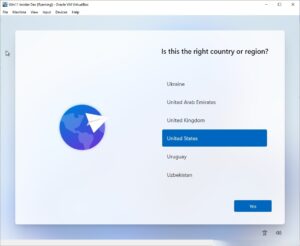
Language
Region
Keyboard layout
Everything feels normal so far.
When You Reach the Internet Screen
Initially, you will see:
“Let’s connect you to a network”
This is the most important moment.
What to Do:
❌ Do NOT connect to Wi-Fi
❌ Do NOT plug in Ethernet
Look carefully at the screen.
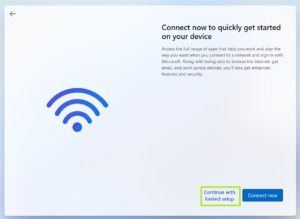
Click “I don’t have internet”
On the next screen, select “Continue with limited setup”
Microsoft makes this option small on purpose. Take your time don’t rush.
Create Your Local Account
Now Windows will finally allow you to:
Enter a username
Create a password (optional but recommended)
Add security questions (can be skipped)
Once done, Windows will finish setup normally.
Finally and Simply
You’ve installed Windows 11 without a Microsoft account.
Method 2: Use the Command Prompt Trick (When Windows Refuses)
Sometimes Windows 11 doesn’t show the “Continue with limited setup” option especially on newer versions or preinstalled laptops.
Don’t worry. This method still works and is 100% safe.
Step-by-Step Instructions
When Windows forces the Microsoft account sign-in screen, press:
Shift + F10A black Command Prompt window will open
Carefully type:
Press Enter
Your PC will restart automatically
After Restart
Choose region and keyboard again
When you reach the internet screen:
Click “I don’t have internet”
Select “Continue with limited setup”
Now create your local account as usual.
→Done. No hacks. No damage. Just using Windows’ own setup logic.
If you’re facing internet issues just after setting up Windows, you may also want to read our step-by-step guide on fixing WiFi connected but no internet problems.
Why This Trick Works, In Simple Terms
Windows setup is called OOBE (Out Of Box Experience).
The command:
tells Windows:
Skip the Network Requirement Option
Allow offline setup
Show local account option
This is not illegal, not piracy, and not a modification. It’s simply an internal command Microsoft already includes.
What You Lose Without a Microsoft Account
Let’s be real, nothing should be hidden.
You Won’t Automatically Get:
OneDrive cloud backup
Cross-device syncing
Microsoft Store auto sign-in
Some AI and personalization features
You Still Get:
Full Windows functionality
Internet browsing
App installation
Windows updates
Microsoft Store, you can sign in later
Office apps, Chrome, Zoom, printers everything
👉 Your PC remains 100% usable.
Can You Add a Microsoft Account Later?
Yes. Anytime.
If one day you decide:
You want OneDrive
You want Microsoft Store sync
Your mind is changed now
Just go to:
Settings → Accounts → Your info → Sign in with a Microsoft account instead
No reinstall required.
Set Up Windows 11
Why Many People Prefer Local Accounts
People often choose local accounts because:
They use the PC offline
It’s a family or shared computer
They value privacy
They don’t want emails tied to login
They don’t trust cloud syncing
They want less tracking
And honestly, All of those reasons make sense.
FAQs
1. Can I really use Windows 11 without a Microsoft account?
Yes, absolutely. Windows 11 fully supports local accounts. You can set up and use your PC without signing in to a Microsoft account, and all essential Windows features will continue to work normally.
2. Will Windows 11 force me to add a Microsoft account later?
No. Windows may occasionally suggest signing in with a Microsoft account for extra features, but it cannot force you. You can continue using your local account permanently if you choose.
3. Does setting up Windows 11 without a Microsoft account reduce security?
No. A local account is still secure as long as you use a strong password and keep Windows updated. Security updates, Windows Defender, and firewall protection work the same way with or without a Microsoft account.
4. Will I still receive Windows updates without a Microsoft account?
Yes. Windows updates do not require a Microsoft account. Your system will continue to receive security patches, feature updates, and driver updates automatically.
5. Can I add a Microsoft account after setup if I change my mind?
Yes. You can add a Microsoft account at any time by going to Settings → Accounts → Your info. You do not need to reinstall Windows or create a new user account.
Microsoft’s official support site also explains the difference between local and Microsoft accounts if you want deeper technical insight.
MY Personal Experience
Your computer is not a rental.
It’s not a subscription.
It’s not Microsoft’s personal data machine.
It’s your device.
Choosing to set up Windows 11 without a Microsoft account is not wrong, outdated, or risky it’s simply a personal choice.
If this guide helped you:
Save it for future PC setups
Share it with someone who’s stuck
Or tell me if you want a Windows privacy & optimization guide next
You deserve control over your own technology and now you have it.
