How to Fix Audio Renderer Error in Windows 11 (Complete 2026 Guide)
Have you ever sat down after a long day, clicked on a YouTube video, joined an online meeting, or opened your favorite song only to be greeted by this annoying message that literally frustrates you?
Audio Renderer Error. Please restart your computer.
At that moment, frustration kicks in. You restart your PC, things work for a while, and then boom the error is back again. If this sounds familiar, you’re not alone. Thousands of Windows 11 users face this issue every single day, and honestly, it can feel exhausting.
The good news?
This problem is fixable, and you don’t need advanced technical skills to solve it.
In this complete guide, I’ll guide you step by step by the given topics below here⇓
What the Audio Renderer Error really means
Why it happens in Windows 11
Step by step solutions that actually work
My honest opinion based on real experience
FAQs that answer common user doubts
Take a deep breath we’ll fix this together.
What Is the Audio Renderer Error in Windows 11?
The Audio Renderer Error appears when Windows 11 fails to build connection properly with your sound hardware or audio services. In simple terms, your system knows you want sound, but something in the background is blocking it.
This error commonly appears when:
Playing YouTube videos
Watching Netflix or streaming platforms
Joining Zoom or Google Meet calls
Playing games
Using media players like VLC
Sometimes the sound works perfectly for hours, and sometimes it stops without warning. That unpredictability is what makes this issue so irritating.
Why Does Audio Renderer Error Occur? (Main Causes)
Before directly went into fixes, it’s important to understand why this happens. Knowing the main cause helps prevent the issue from coming back.
1. Conflicting Audio Devices
Windows 11 often struggles when:
Headphones and speakers are connected together
Bluetooth audio devices interfere with wired ones
HDMI audio clashes with internal speakers
2. Outdated or Corrupted Audio Drivers
Audio drivers act as translators between Windows and your sound hardware. When they’re outdated, damaged, or incompatible, errors appear.
3. Windows Audio Services Not Responding
If the Windows Audio service freezes or crashes, audio playback immediately fails.
4. External Audio Devices
USB headsets, Bluetooth earbuds, and audio interfaces sometimes cause conflicts especially after sleep mode or Windows updates.
5. Recent Windows Updates
Ironically, updates meant to “improve performance” can sometimes break existing audio configurations.
Step-by-Step Guide to Fix Audio Renderer Error in Windows 11
Follow these steps one by one. In most cases, you won’t need to try all of them.
Step 1: Restart Your Computer (Don’t Skip This)
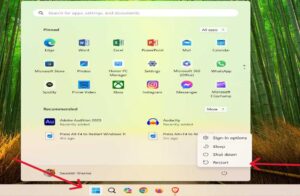
I know this sounds too simple, but restarting clears temporary glitches, resets services, and reloads drivers.
Save your work
Restart your PC
Try playing audio again
🟢 If the error disappears—great!
🔴 If not, continue to Step 2.
Step 2: Reconnect Your Audio Device
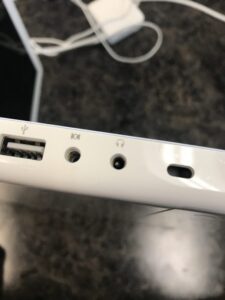
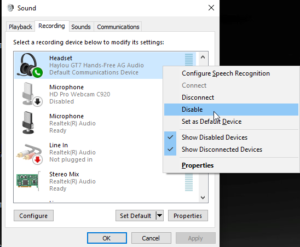
Bugged connections can trigger the error.
What to do:
Unplug your headphones or speakers
Wait 10–15 seconds
Plug them back in
If using Bluetooth, disconnect and reconnect
This refreshes the audio handshake between Windows and your device.
Step 3: Disable and Re-Enable the Audio Device
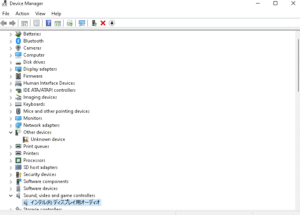
This step resets your sound driver without reinstalling it.
Steps:
Press Win + X
Click Device Manager
Expand Sound, video and game controllers
Right-click your audio device
Select Disable device
Wait 5–10 seconds
Right-click again → Enable device
Many users report instant results with this method.
Step 4: Update Your Audio Drivers (Very Important)
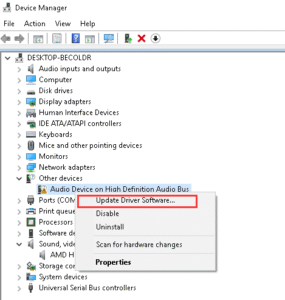
Outdated drivers are one of the top reasons behind this error.
How to update:
Open Device Manager
Right-click your audio device
Click Update driver
Select Search automatically for drivers
If Windows finds an update, install it and restart your PC.
Pro tip: If Windows doesn’t find anything, visit your laptop or motherboard official website and download the latest audio driver manually.
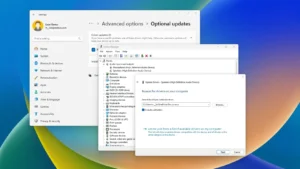
Step 5: Restart Windows Audio Services
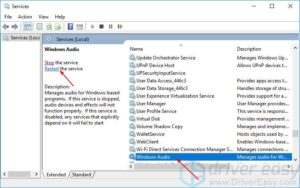
If audio services stop responding, no sound will play no matter what you do.
Steps:
Press Win + R
Type
services.mscPress Enter
Find Windows Audio
Right-click → Restart
Do the same for Windows Audio Endpoint Builder
This refreshes Windows core sound engine.
Step 6: Set the Correct Audio Device as Default
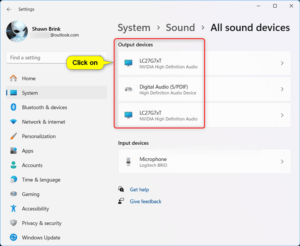
Windows sometimes switches your default device automatically—especially after updates or new connections.
Fix it:
Right-click the speaker icon on the taskbar
Click Sound settings
Under Output, select your correct device
Make sure it’s set as default
If multiple devices are listed, disable the ones you don’t use.
Step 7: Turn Off Audio Enhancements
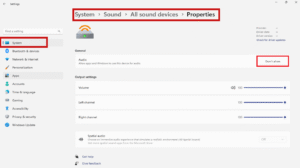
Audio enhancements can improve sound but they can also break it.
Steps:
Go to Sound settings
Click your output device
Scroll to Enhancements
Turn them Off
Restart your browser or app
This fix works surprisingly well for laptops.
Step 8: Run Windows Audio Troubleshooter
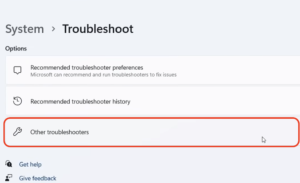
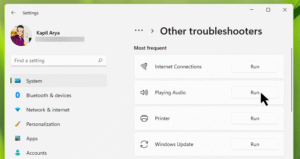
Windows has a built-in tool designed specifically for problems like this.
How to run it:
Open Settings
Go to System → Sound
Scroll down and click Troubleshoot
Follow the on-screen steps
Sometimes it doesn’t always fix everything, it’s worth trying.
Step 9: Update Windows 11
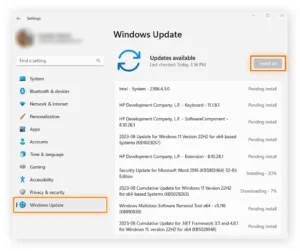
Sometimes the error isn’t your fault—it’s a system bug.
Open Settings
Go to Windows Update
Install any pending updates
Restart your PC
Microsoft often releases silent fixes for audio problems.
For more detailed audio troubleshooting steps, you can also refer to this official Windows audio support guide.
My Honest Opinion
I have personally deal with this error multiple times, especially after Windows updates. I know how frustrating it feels especially during meetings or when relaxing.
From real-world experience:
Restarting audio services fixes most cases
Updating drivers prevents it from returning
Disabling unused audio devices keeps things stable
Windows 11 is powerful, but it’s not perfect. A little manual setting done with proper guide can leads to it’s best experience.
Conclusion
The Audio Renderer Error in Windows 11 can be frustrating, unpredictable, and so much annoying but it’s not permanent.
By following this guide:
✔ You understand the cause
✔ You know exactly how to fix it
✔ You can prevent it from happening again
Take it step by step, stay calm, and your sound will be back clear and stable.
FAQs
Is Audio Renderer Error a serious problem?
No. It’s usually a software or driver issue, not a hardware failure.
Does this error damage my speakers or headphones?
Not at all. It doesn’t harm your audio hardware.
Why does the error return after restarting?
Because the root cause—like outdated drivers or conflicting devices—wasn’t fixed.
Should I reinstall Windows to fix this?
Only as a last resort. Most users never need to reinstall Windows.
Does this error affect gaming and meetings?
Yes. It can mute:
Games
Online meetings
Videos
Music players
That’s why fixing it properly is important.
IF YOU FIND IT HELPFUL AND YOU FIXED THE ERROR DON’T FORGET TO SHARE WITH YOUR CIRCULE OF PEOPLE IF THEY ARE HAVING THE SAME ANNOYING ISSUE AND SHARE YOUR REVIEW ALSO IN COMMENT SECTION, THIS WILL HELP US TO PROVIDE MORE HELPFUL CONTENT FOR YOU ALL♥

2 thoughts on “How to fix audio renderer error in windows 11”