WiFi Connected but No Internet on Android, iPhone & PC (Step by Step Guide)
If your WiFi is connected but shows no internet access, follow this complete troubleshooting guide.
You open your phone or laptop, connect to WiFi, and feel relieved for half a second…
Then reality hits.
No website opens. Messages don’t send. Videos won’t play.
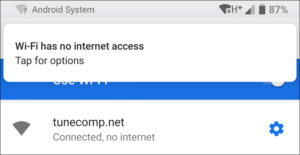
Just that painful line: “Connected, but no internet.”
If you’re feeling annoyed, stressed, or even helpless right now, pause for a moment.
You’re not alone—and more importantly, this problem is usually fixable.
This guide is written like a human talking to another human. No confusing jargon, no rushing. Just clear steps, real explanations, and practical fixes that work on Android, iPhone, and PC.
Take a deep breath. Let’s fix this together.
What “WiFi Connected but No Internet” Really Means (In Simple Terms)
When your device shows WiFi connected but no internet, it means:
Your phone or computer can talk to the router
But the router cannot properly reach the internet
Think of it like this:
You’re inside the house, but the road outside is blocked.
The issue can come from:
Temporary network glitches
Router or modem problems
Incorrect network settings
DNS or IP conflicts
Internet Service Provider (ISP) outages
The trick is fixing it step by step, without guessing.
If your Windows PC is experiencing other common issues, you can also check our detailed guide on how to fix audio renderer error in Windows 11 to resolve sound and system errors easily.
WiFi Connected but No Internet
Step 1: Start With These Simple Fixes (Don’t Skip Them)
These may look basic, but they solve more than half of all cases.
1. Turn WiFi Off and On Again
Turn off WiFi on your device
Wait 10–15 seconds
Turn it back on and reconnect
This refreshes the wireless connection and clears small glitches.
2. Restart Your Device
Restart your Android phone, iPhone, laptop, or PC
Reconnect to WiFi after reboot
Many background network bugs disappear after a restart.
3. Restart Your Router and Modem (Most Important Step)
Turn off the router
Unplug it from the power source
Wait 30–60 seconds
Plug it back in
Wait until all lights stabilize
If no device gets internet after this, the issue is likely with your ISP.
If some devices work and others don’t, move to device-specific fixes below.
Step 2: Fix WiFi Connected but No Internet on Android
Android phones are powerful but sensitive to network conflicts. Try these steps calmly.
1. Forget the WiFi Network and Reconnect
Open Settings → WiFi
Tap your connected WiFi network
Select Forget
Restart your phone
Reconnect and enter the password again
This clears saved errors that block internet access.
2. Turn Airplane Mode On and Off
Enable Airplane Mode
Wait 15 seconds
Turn it OFF
Reconnect to WiFi
This resets all wireless radios internally.
3. Reset Network Settings (Highly Effective)
This does not delete photos, apps, or files.
Go to Settings → System → Reset options
Tap Reset WiFi, Mobile & Bluetooth
Confirm and restart your phone
Many users fix the issue permanently at this step.
4. Check for Android Updates
Outdated software can cause WiFi bugs.
Settings → Software Update
Install available updates
Restart after updating
Step 3: Fix WiFi Connected but No Internet on iPhone
iPhones usually handle networks well, but small misconfigurations can block internet.
1. Turn WiFi Off, Then Reset the Connection
Settings → WiFi → Toggle OFF
Restart iPhone
Turn WiFi ON again and reconnect
2. Turn Off WiFi Assist
Go to Settings → Mobile Data
Scroll down
Turn WiFi Assist OFF
This prevents the phone from constantly switching networks and causing confusion.
3. Reset Network Settings (Best iPhone Fix)
Settings → General → Transfer or Reset iPhone
Tap Reset
Choose Reset Network Settings
This removes all saved WiFi passwords but fixes deep network issues.
4. Check Date & Time Settings
Incorrect time can break secure connections.
Settings → General → Date & Time
Enable Set Automatically
Step 4: Fix WiFi Connected but No Internet on Windows PC or Laptop
Seeing the WiFi icon but no internet on Windows is extremely common.
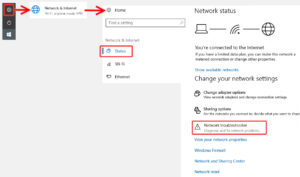
1. Run Windows Network Troubleshooter
Right-click the WiFi icon
Select Troubleshoot problems
Let Windows detect and fix the issue automatically
Surprisingly effective for basic errors.
2. Reset IP and DNS Using Command Prompt
Press Windows + R
Type
cmdRun as Administrator
Enter these commands one by one:
ipconfig /release
ipconfig /renew
ipconfig /flushdns
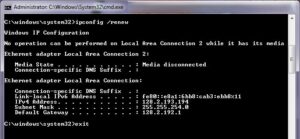
Restart your PC after this.
This clears corrupted IP and DNS data.
3. Disable Proxy Settings
Settings → Network & Internet → Proxy
Turn Use a proxy server OFF
Incorrect proxy settings often block internet completely.
4. Update or Reinstall Network Driver
Open Device Manager
Expand Network Adapters
Update WiFi driver or uninstall and restart
Driver issues are common after Windows updates.
For official guidance on fixing internet connection problems in Windows, you can also refer to Microsoft’s support documentation for additional troubleshooting steps.
WiFi Connected but No Internet
Step 5: Check Router and Internet Connection Health
Sometimes the problem isn’t your device it’s the network itself.
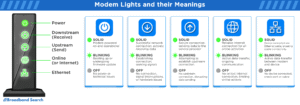
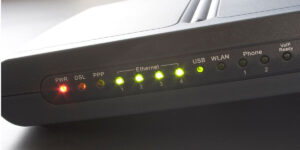
1. Look at Router Lights
Green/Blue = Normal
Red or blinking = Internet problem
If the internet light is off or red, contact your ISP.
2. Try Connecting Another Device
If all devices fail, it’s an ISP issue
If only one device fails, it’s a device issue
This test saves a lot of time and confusion.
Step 6: Change DNS (Optional but Powerful)
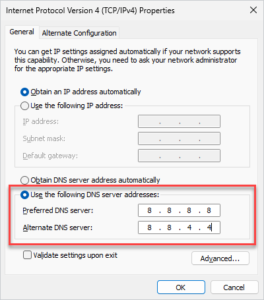
If websites partially load or fail randomly, DNS may be the issue.
Use public DNS:
Google DNS:
8.8.8.8and8.8.4.4Cloudflare DNS:
1.1.1.1
Changing DNS often improves speed and stability.
Step 7: When Nothing Works (Final Options)
If you’ve tried everything:
Update router firmware
Factory reset router (last resort)
Use mobile hotspot to test device
Contact ISP support
If mobile hotspot works → router or ISP is the problem.
My personal Experience
Internet problems feel small until they stop your work, your studies, or your peace of mind.
If you’re stressed right now, that’s normal.
But remember this:
You didn’t break anything
This issue happens to millions of people
Most cases are temporary and fixable
Take it step by step. Don’t rush.
Your internet will come back.
FAQs
1. Why is my Wi-Fi connected but no internet connection?
Common causes include modem or router problems, ISP outages, slow speeds, network congestion, weak Wi-Fi signals, or IP address conflicts
2. How do I fix my Wi-Fi connected but no internet access on my phone?
You can fix this by turning airplane mode on and off, restarting your phone, forgetting and reconnecting the WiFi network, or resetting network settings if the problem continues.
3. Can you be connected to Wi-Fi and not have internet?
Most people dont know this but your WiFi can work without the internet. I mean think about it: have you ever seen “Wi-Fi connected, no internet” pop up on your phone? That’s because Wi-Fi is just a radio signal that links your device to a router.
4. Should I reset my router when Wi-Fi has no internet?
Rebooting (or resetting) your router can often solve the issue, and in some cases, even improve the internet speed and performance in your home.
5. How do I reset my network settings?
Resetting network settings clears saved Wi-Fi, Bluetooth, and cellular data configurations to fix connectivity issues, requiring you to re-enter passwords and re-pair devices afterward, with steps varying slightly by device (e.g., Settings > System > Reset options > Reset Wi-Fi, mobile & Bluetooth on Android, or Settings > Network & internet > Network reset on Windows).
BY FOLLOWING THESE STEPS IF YOU SUCCESSFULLY GET YOUR INTERNET BACK SO DONT’T FORGET TO SHARE THIS VALUEABLE INFORMATION WITH OTHERS TO HELP THEM AND YOU CAN EXPLORE MORE USEFULL INFORMATION HERE FOR YOUR DAILY TECH ISSUES, WE ARE ALWAYS HERE TO SERVE YOU♥

2 thoughts on “Fix WiFi Connected but No Internet on Android, iPhone & PC”